Create an account
An account is free, takes a name, an address and a password, and needs no card. It is what makes a reel yours — reels are stored against the account, so they open on any device you sign in from.
Open the register page
/register, or Start drawing in the header — which sends you here first if you are not signed in.
Fill in three fields
Name, email, password. The name is the one shown on anything you publish; you can change it later from your account.
Press Create account
You are signed in immediately — no email to confirm — and land on Your reels. A welcome mail follows, saying which plan you are on.
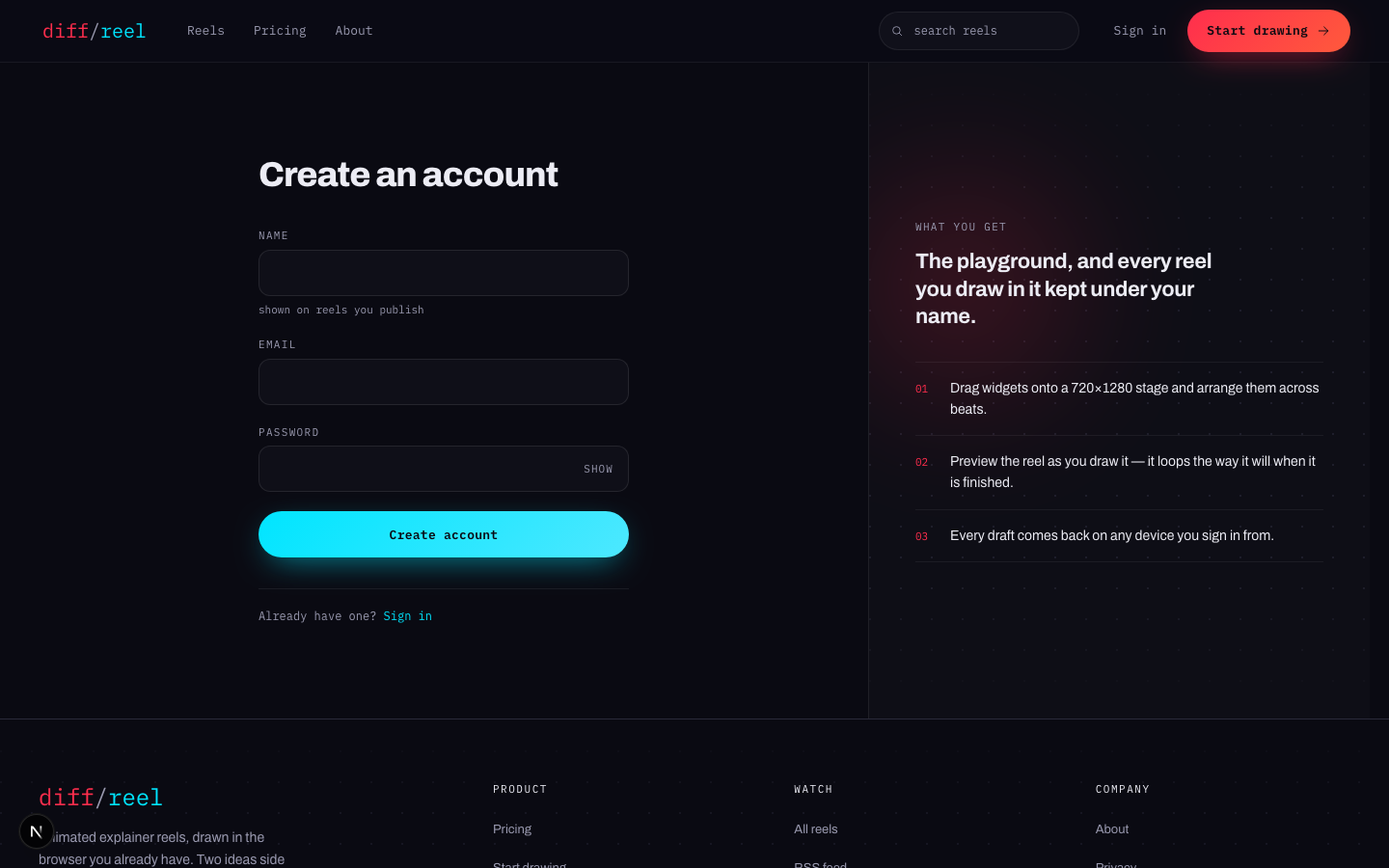
Creating an account
- What changes
- A new account on the Free plan — five reels a month, and the part of the toolbox the playground shipped with.
- Who sees it
- Only you. Nothing about a new account is public, and an account on its own creates no page anywhere.
- When to do it
- Before your first save. You can draw without one — the playground opens for anybody — but you cannot keep what you drew.
- How to undo it
- Delete this account under Profile on your account. It asks for your password, and it takes the reels with it.
Sign in, and stay signed in
/login takes the address and password you registered with. A session lasts until you sign out or it expires, and it is per browser — signing in on a laptop does not sign you in on a phone.
Every sign-in, successful or not, is recorded against your account with the device and rough location. You can read that list yourself under Activity on your account, which is the fastest way to notice a sign-in that was not you.
Forgotten password
Ask for a link
/forgot-password takes your address and sends a reset link. The page answers the same way whether or not the address has an account — otherwise the form would be a way of finding out who is registered here.
Open the link
It is single-use and expires. If it has expired, ask for another; nothing is consumed by trying.
Set the new password
You are signed in on this browser once it is set.
Resetting your password
- What changes
- The password on the account. Every other session is signed out — the point of a reset is that whoever else had the old one no longer has anything.
- Who sees it
- Only you. The reset appears in your own Activity list.
- When to do it
- You have forgotten it, or you think somebody else has it.
- How to undo it
- You cannot restore the old password. Reset again if you want a different one; nothing else about the account is affected.